How to Integrate Gateway with WooCommerce
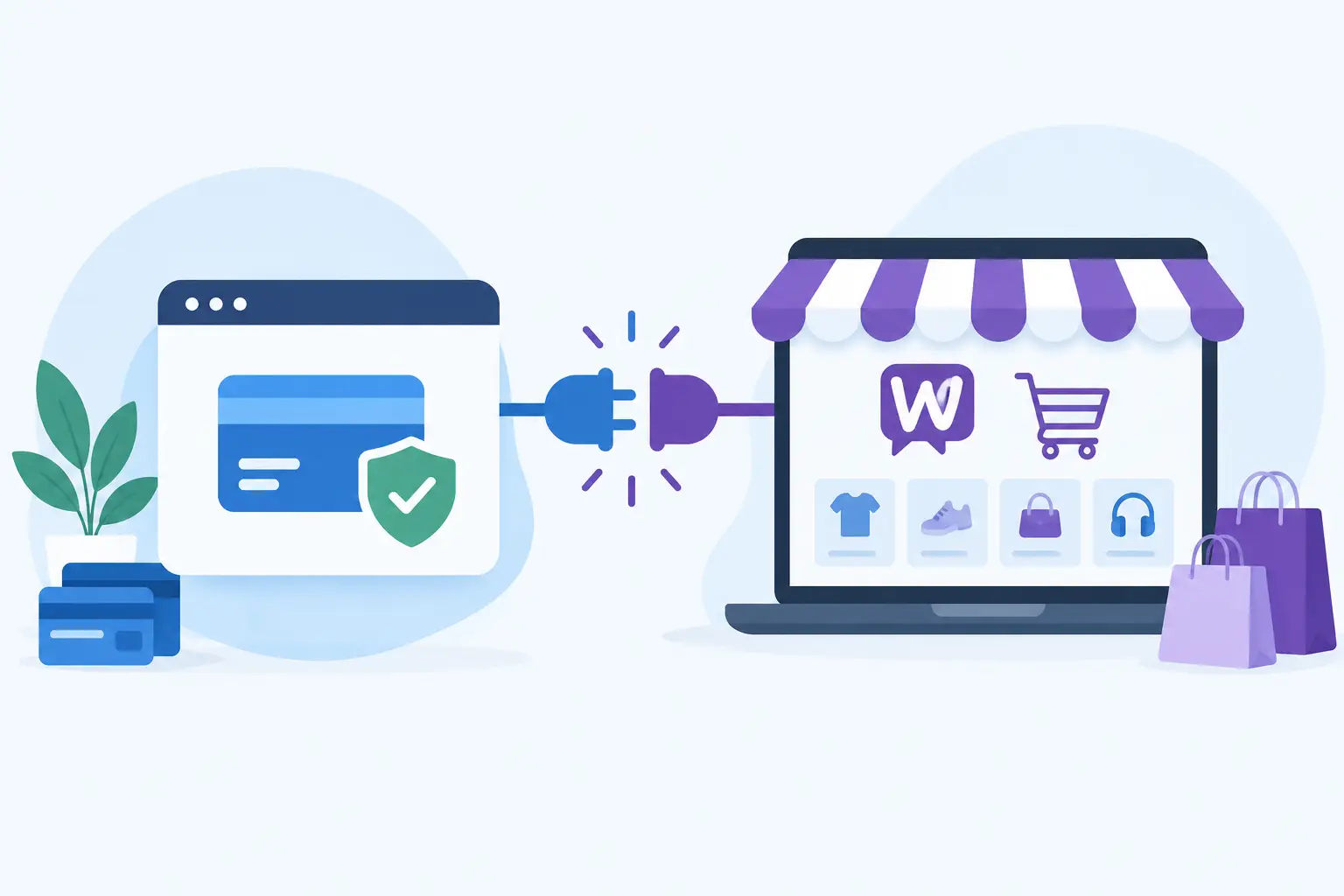
A WooCommerce store can look ready for sales and still lose revenue at the final click. If customers cannot complete checkout, recurring orders fail without clear reporting, or funds are held without warning, the issue is usually not your product page. It is your payment setup. To integrate gateway with WooCommerce effectively, high-risk merchants need more than a plugin – they need a gateway, merchant account, and underwriting path built for how they sell.
For merchants in restricted or higher-scrutiny categories, payment acceptance is operational infrastructure. The right setup supports the checkout experience, protects cash flow, gives your team transaction visibility, and creates a clear path for resolving issues when they arise.
Start With the Right Payment Structure
A payment gateway and a merchant account do different jobs. The gateway securely passes payment data from your WooCommerce checkout to the processor. The merchant account is where approved card transactions are accepted and settled before payouts reach your business bank account.
This distinction matters because a gateway connection alone does not mean your business is approved to process payments. High-risk merchants often run into trouble when they install a standard payment plugin first, then discover their category, billing model, or sales volume does not fit the provider’s underwriting rules. The result can be declined applications, delayed launches, account reviews, or sudden interruptions after sales begin.
Start by matching your business model to a high-risk merchant account. Be accurate about what you sell, how you market it, your average order value, expected monthly volume, refund policies, and whether you offer subscriptions. Clear information at onboarding gives the underwriting team a better picture of your operation and helps prevent a mismatch later.
A specialized provider can also help determine whether your store needs a standard hosted checkout flow, a direct card-entry form, a virtual terminal, subscription billing support, or a combination of these tools. That decision should come before the technical connection, not after it.
What You Need Before Connecting WooCommerce
WooCommerce is flexible, but a clean integration depends on having your payment credentials and business policies in order. Before your gateway is configured, prepare your legal business details, tax identification information, bank account details, processing history if available, and a live version of your website.
Your site should clearly show what you sell, how customers contact you, how shipping or fulfillment works, and how refunds or cancellations are handled. If you use subscription billing, explain the recurring charge terms in plain language. Those details are not just for customers. They are part of the review process and can reduce disputes caused by confusion at checkout.
You will also need gateway credentials. Depending on the provider, these may include a merchant ID, API key, transaction key, terminal ID, or security signature. Treat them like passwords. Store them securely, limit access to the people who need it, and avoid pasting live credentials into support tickets or public documents.
How to Integrate a Gateway With WooCommerce
The actual WooCommerce connection is usually straightforward once the processing foundation is approved. The exact screens vary by gateway, but the process follows the same practical sequence.
Choose a Compatible Gateway Plugin
Use a WooCommerce payment plugin that is specifically compatible with your approved gateway. Do not choose based only on the plugin’s rating or price. Confirm that it supports the features your business relies on, including authorization and capture settings, refunds, saved payment methods if permitted, recurring billing, and fraud controls.
Compatibility also means keeping the plugin, WooCommerce, WordPress, and your active theme current. An outdated plugin can create checkout errors after a WordPress update, even if it worked perfectly at launch. Before updating a live store, test changes in a staging environment when possible.
Enter Live Gateway Credentials Carefully
From your WordPress dashboard, open WooCommerce settings and select the Payments area. Enable the approved gateway, then enter the credentials supplied during onboarding. Most plugins include a test mode and a live mode. Use test mode first, but make sure you know which credentials belong to each environment.
Configuration options often include the payment method label customers see, authorization versus sale transactions, accepted card types, statement descriptor settings, and whether card details can be saved for future purchases. Set these based on your approved processing program and customer experience, not guesswork.
If your business captures payment after fulfillment rather than at the time of purchase, confirm how authorizations expire and how your team will capture them. If you charge at checkout, a sale transaction may be more appropriate. The right approach depends on your fulfillment timing and the rules of your merchant account.
Configure Checkout and Security Settings
Your checkout should be simple for customers and controlled behind the scenes. Require HTTPS across the entire site, not only the checkout page. Enable address verification and card security code checks where they fit your approved settings. These tools do not eliminate fraud, but they can help identify transactions that deserve a closer review.
Use clear billing descriptors and customer support contact details. Customers are more likely to dispute a charge they do not recognize, particularly for subscription offers or brands that use a different name in marketing than on their bank statement. A recognizable descriptor and responsive support process can reduce unnecessary chargebacks.
Run Realistic Tests Before Launch
A test transaction should confirm more than whether the card form loads. Check that the order appears correctly in WooCommerce, the transaction is visible in the gateway dashboard, confirmation emails are delivered, taxes and shipping calculate properly, and failed payments show a useful message without exposing sensitive details.
Then review your cancellation, refund, and fulfillment workflows. Your staff should know where to find a transaction, how to issue a refund through the correct system, and how to respond when a customer says a charge did not go through. Operational mistakes after launch can create as much friction as a technical error.
Plan for Subscriptions and Repeat Billing
Subscription stores need an additional layer of attention. A recurring payment is not simply a one-time charge on a schedule. The gateway, merchant account, and WooCommerce subscription tool must support the same billing model, including retries for failed payments, tokenized payment methods, customer cancellation options, and recurring billing disclosures.
Before launching, decide what happens when a renewal payment fails. Will the system retry after a set number of days? Will access end immediately or after a grace period? Will customers receive an email before the retry? These are business decisions, but they affect revenue recovery, customer support volume, and dispute risk.
Be direct about trial periods, renewal dates, billing frequency, and cancellation instructions. High-risk merchants benefit from clarity because unclear recurring terms can damage both customer trust and processing stability.
Avoid the Most Common WooCommerce Payment Mistakes
The biggest mistake is treating processing as a one-time technical task. Your gateway connection needs ongoing oversight. Review transaction declines, refund rates, disputes, and payout activity regularly through the processing dashboard. A sudden rise in declines could point to fraud filters that are too strict, expired customer cards, a plugin conflict, or a problem with a specific product or campaign.
Another common mistake is changing products, pricing, or marketing claims without considering processing implications. A major shift in what you sell or how you bill can require an underwriting review. Communicate changes early rather than waiting for an account question or funding delay.
Finally, do not assume every payment issue is a gateway issue. A cart plugin, caching tool, theme update, email service, or website firewall can interfere with checkout. When troubleshooting, identify where the transaction stops: before the customer submits payment, at gateway authorization, in the WooCommerce order record, or during settlement. That makes support faster and prevents random changes to a working configuration.
Build for Reliable Revenue, Not Just a Working Checkout
When you integrate a gateway with WooCommerce, the goal is not merely to place a card field on a checkout page. The goal is to create a dependable payment environment that matches your risk profile and gives you control over the revenue your store earns.
Myco Solutions works with high-risk merchants that need a practical path from approval through gateway setup, including the operational tools that matter after the first transaction. For the right business, that can mean clearer dashboard visibility, hands-on onboarding, and payout options designed to support active online sales.
Choose a payment setup that can support the business you are building, not just the order you want to process this afternoon. A few careful decisions before launch can prevent the costly interruption of rebuilding your payment stack when momentum is already on the line.